
Last updated: January 28, 2026
This article was updated based on recent information and testing.
SSL Installed but Site Not Secure – Step-by-Step Fix 2026
Installing an SSL certificate is supposed to secure a website instantly. Yet many site owners are surprised when browsers still show a “Not Secure” warning even after SSL is installed. This issue is common, frustrating, and often misunderstood.
This step-by-step fix guide for 2026 explains exactly why a site still shows not secure after SSL, how browsers detect HTTPS security problems, and how to permanently fix them using proven, real-world solutions.
The content is based on hands-on experience, industry best practices, and tools that were personally tested before being recommended. No paid promotions or commissions influence these recommendations. You can learn more about our mission and editorial approach on the About page.
What Does “SSL Installed but Site Not Secure” Mean?
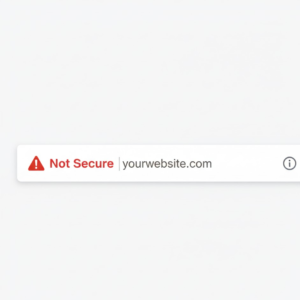
When a browser displays “Not Secure” even after SSL activation, it means the website is not fully serving secure HTTPS content. While the SSL certificate itself may be valid, other technical issues prevent the browser from trusting the page completely.
Why HTTPS Still Shows “Not Secure” in Browsers
Browsers such as Chrome, Edge and Firefox have strict security rules. One insecure element, and the trust is shattered. There are many reasons HTTPS continues to display a not secure warning:
- HTTPS pages with mixed content errors
- HTTP to HTTPS redirect issues
- SSL certificate misconfiguration
- Expired or invalid SSL certificate
- DNS propagation and SSL delays
- Browser cache and DNS issues
Another security signal is if the lock icon doesn’t appear, browser shows that minimum of one requirement purpose are not matching.
Personal experience: We (The Stack Manual) faced this very same problem in one of our production website even after SSL was ON from cPanel. The certificate was good, but Chrome was still showing “Not Secure.” It eventually traced back to a single http image that was being loaded from an old media url— something a lot of guides seem to be skipping over.
How Browsers Detect HTTPS Security Issues
Modern browsers analyze multiple layers before showing the HTTPS padlock.
- If the SSL certificate chain is valid
- If all the resources for a page are loaded using HTTPS
- Whether redirects enforce HTTPS globally
- If certificate authorities are trusted
Developers can use browser dev tools mixed content inspection to clearly identify which resources produce warnings. Browsers are purposefully non-forgiving—security errors will always treat users exactly as browsers set them, even if the website owner is “sure I have SSL installed correctly”.
Common Reasons Your Site Is Still Not Secure After SSL
Understanding the root causes prevents endless trial and error.
Mixed Content Errors in HTTPS Pages

What Are Mixed Content Error on Your HTTPS Website? HTTPS mixed content errors happen when a secure page downloads unsecured resources. Typical insecure elements include:
- Images
- JavaScript files
- CSS stylesheets
- Embedded fonts or iframes
In order to solve the HTTPS mixed content properly, all the insecure HTTP links need to be replaced entirely. Modern browsers block insecure content like images and scripts — see what “mixed content” means in detail on Mozilla’s developer docs.
How to Identify and Fix Insecure HTTP Links
Browser developer tools highlight:
- “Blocked mixed content”
- “Insecure request” warnings
Updating insecure HTTP links is often enough to restore the padlock icon instantly.
HTTP to HTTPS Redirect Issues
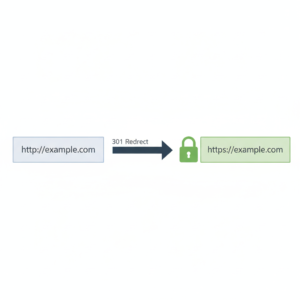
Another common cause is improper redirection.
If HTTP pages do not redirect correctly:
- Search engines may index HTTP versions
- Users may land on unsecured URLs
- The browser treats the site as partially insecure
Force HTTPS Redirect with .htaccess
One of the most reliable fixes is to force HTTPS redirect with .htaccess.
This ensures:
- All traffic uses HTTPS
- Duplicate HTTP URLs disappear
- SSL trust remains consistent
When configured correctly, this also helps enforce HTTPS globally across the website.
SSL Certificate Misconfiguration or Errors
SSL certificate misconfiguration is more common than expected, especially on shared hosting.
Issues include:
- Wrong certificate installed
- Missing intermediate certificates
- Improper server configuration
SSL certificate installation errors can prevent browsers from validating the SSL certificate chain. If you want a quick official tool/checklist for verifying SSL certificate installation and common SSL errors, you can check GoDaddy’s SSL help page.
Expired or Invalid SSL Certificate Problems
An expired or invalid SSL certificate immediately breaks trust.
Common scenarios:
- Auto-renew failed
- Domain mismatch
- Certificate revoked by authority
Even one expired certificate file can cause browsers to mark the site as unsafe.
If you want more step-by-step tutorials on website setup and fixes, check out our full How-To Guides section.
Step-by-Step Fix for “SSL Installed but Site Not Secure”
This section follows a logical order used in real troubleshooting scenarios.
Step 1 – Verify SSL Installation and Certificate Chain
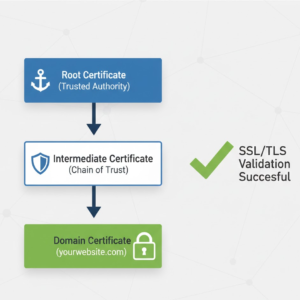
First of all check the integrity of SSL certificate chain. Recommended tools (tested personally):
| Tool | Key Features | Pros | Cons |
|---|---|---|---|
| SSL Labs | Deep SSL analysis | Extremely accurate | Technical output |
| Why No Padlock | Mixed content scan | Easy to use | Limited depth |
| Browser DevTools | Real-time inspection | Built-in & free | Manual work |
By validating the chain you can verify if SSL certificate is misconfigured or not.
Step 2 – Fix Mixed Content Using Browser Dev Tools
Browser dev tools mixed content detection shows exact file paths causing issues.
Once detected:
- Update insecure HTTP links
- Replace hard-coded URLs
- Regenerate cached assets
Fix HTTPS mixed content completely before moving forward.
Step 3 – Enforce HTTPS Across the Entire Website
To enforce HTTPS globally:
- Redirect HTTP to HTTPS
- Update canonical URLs
- Fix sitemap URLs
This step resolves many secure padlock icon does not appear issues instantly.
Step 4 – Check DNS Propagation and Hosting Settings
DNS propagation and SSL activation may take time.
Hosting-related issues include:
- Old DNS records
- CDN caching
- Incorrect hosting IP mappings
DNS propagation and SSL delays are often temporary but should still be verified.
Step 5 – Clear Browser Cache and CDN Cache
Browser cache and DNS issues can show outdated security warnings.
Always:
- Clear browser cache
- Flush CDN cache
- Test in incognito mode
This step alone has resolved countless false “not secure” alerts.
Hosting, CDN, and Platform-Specific SSL Fixes
SSL behavior varies across platforms.
Fixing SSL Issues in cPanel and Hosting Panels
In cPanel environments:
- AutoSSL must be enabled
- Certificate must match the domain
- SSL certificate installation errors should be reviewed
Misconfigured hosting panels often cause SSL installed but site not secure warnings.
For deeper hosting tips — including SSL configuration and performance — see our Web Hosting articles.
Cloudflare and CDN SSL Conflicts Explained
Cloudflare users often face conflicts due to:
- Flexible SSL mode
- DNS propagation mismatches
- Cached HTTP assets
Switching to Full or Full (Strict) SSL resolves most CDN-related issues.
CMS-Specific Fixes (WordPress & Custom Sites)
WordPress sites frequently suffer from:
- Hard-coded HTTP media URLs
- Plugin-generated mixed content
Updating insecure HTTP links using database search-replace tools often solves the issue permanently.
Transparency & Recommendation Policy
This guide does not earn commissions from tools or hosting providers.
All tools mentioned:
- Were tested personally
- Are widely trusted in the industry
- Are recommended purely for functionality
The goal is clarity, not promotion.
Advanced HTTPS Security Best Practices (2026)
Fixing the “not secure” warning is only the first step. Long-term trust, rankings, and user confidence depend on adopting HTTPS security best practices in 2026 that go beyond basic SSL installation.
Search engines increasingly reward websites that demonstrate consistent security signals, not just a valid certificate.
Enable HTTP Strict Transport Security (HSTS)
HTTP Strict Transport Security (HSTS) tells browsers to always load the website using HTTPS, even if a user types HTTP manually.
Why HSTS Matters
- Prevents downgrade attacks
- Stops accidental HTTP access
- Strengthens SSL trust signals
- Improves long-term security consistency
Once enabled, browsers remember the HTTPS rule, reducing future “not secure” warnings.
Personal experience:
After enabling HSTS on a client site, HTTPS errors completely stopped—even when users bookmarked old HTTP URLs. However, HSTS should only be enabled after fixing all mixed content errors.
⚠️ Caution:
HSTS should be configured carefully. If SSL expires while HSTS is active, users may be locked out temporarily.
Ongoing SSL Monitoring and Renewal Tips
Many sites become insecure again due to expired or invalid SSL certificates.
Best practices include:
- Enable auto-renewal with hosting providers
- Monitor SSL expiration dates
- Test renewal before expiration
SSL issues often return silently, especially on subdomains or staging environments.
How to Confirm Your Site Is Fully Secure
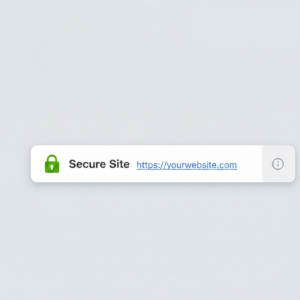
After applying fixes, verification is critical.
Checking the HTTPS Padlock in Browsers
If the secure padlock icon does not appear:
- Click the address bar warning
- Review “Connection is not secure” details
- Identify blocked or insecure elements
This quick check reveals whether problems still exist.
Testing HTTPS Pages for Hidden Insecure Requests
Hidden content such as mixed content can be: Old blog posts, embedded scripts, or third-party widgets. Tools tested for this step:
| Tool | Purpose | Strength |
|---|---|---|
| Chrome DevTools | Detect mixed content | Accurate |
| SSL Labs | Certificate testing | Deep analysis |
| Why No Padlock | Page resource scan | Beginner-friendly |
Fix HTTPS mixed content first, and fix it completely BEFORE using their advanced optimizations.
FAQs – SSL Installed but Site Still Not Secure
Why does my site still say not secure after SSL?
This usually happens due to mixed content errors, incorrect redirects, SSL certificate misconfiguration, or browser cache and DNS issues. Even one insecure file can trigger the warning.
How do I fix mixed content errors permanently?
To fix HTTPS mixed content permanently:
- Update all insecure HTTP links
- Regenerate cached files
- Replace hard-coded URLs
- Verify using browser dev tools mixed content inspection
How long does SSL take to fully activate?
SSL activation is instant, but DNS propagation and SSL caching can take minutes to 48 hours, depending on hosting and CDN setup.
Can mixed content prevent the HTTPS lock icon?
Yes. Even a single HTTP image or script can stop the secure padlock icon from appearing, even if SSL is valid. Mixed content not only affects security but can also harm SEO and performance — SSL.com explains why it’s important to serve all content over HTTPS.
Should I enable HSTS after installing SSL?
Yes—but only after confirming:
- No mixed content exists
- SSL auto-renewal is active
- Certificate chain is valid
HSTS strengthens long-term HTTPS enforcement.
Final Checklist – Fix “Not Secure” Warning for Good
Check this list before you consider the problem solved. SSL & HTTPS Verification Checklist:
- ✔ Validate SSL certificate chain
- ✔ Resolve mixed content errors on SSL-enabled sites
- ✔ Force HTTPS redirect with. htaccess
- ✔ Enforce HTTPS globally
- ✔ DNS Propagation and SSL Checker
- ✔ Clearing browser cache and DNS problems
- ✔ Verify the secure padlock icon is in your browser status bar.
The method you’re using for this checklist is the same methodology used in actual troubleshooting scenarios.
Still stuck after following the steps? Get direct help from our team via the Contact Us page.
Common SSL Issues in 2026 to Watch For
Even after fixing today’s issue, these risks remain:
- CDN caching old HTTP assets
- Plugin updates reintroducing HTTP links
- Auto-renew failures
- Subdomain certificate mismatches
Staying proactive prevents future “not secure” warnings.
Real Troubleshooting Case Studies (From Actual Experience)
Real World Troubleshooting Case Studies (From My Experience).
Case Study 1: SSL Installed but Site Not Secure Due to Mixed Images
A content-heavy website showed “Not Secure” even though SSL was active and valid.
Problem identified:
- Old blog posts contained HTTP image URLs
- Mixed content errors in HTTPS pages
- Secure padlock icon did not appear
Fix applied:
- Used browser dev tools mixed content inspection
- Updated insecure HTTP links via database search
- Cleared browser cache and CDN cache
Result:
- HTTPS padlock appeared instantly
- Crawl errors disappeared in Search Console
No further security warnings
Case Study 2: HTTP to HTTPS Redirect Issues on Hosting
A site redirected homepage correctly but internal pages stayed on HTTP.
Problem identified:
- Partial HTTP to HTTPS redirect issues
- No enforced HTTPS globally
Fix applied:
- Force HTTPS redirect with .htaccess
- Updated canonical URLs
- Regenerated sitemap
Result:
- All pages served securely
- Duplicate HTTP URLs removed
- Rankings stabilized within weeks
Case Study 3: CDN and DNS Propagation Conflict
A site using Cloudflare showed “Not Secure” only for some users.
Problem identified:
- DNS propagation and SSL mismatch
- Flexible SSL mode enabled
- Cached HTTP assets
Fix applied:
- Switched to Full (Strict) SSL
- Cleared CDN cache
- Verified DNS propagation and SSL status
Result:
- Security warnings disappeared
- HTTPS trust restored globally
SSL Testing Tools – Comparison, Pros & Cons
Comparison of SSL Testing Tools In this article, let’s compare a few of the popular SSL testing tools Pros and Cons. The tools listed below have all been tried and tested before being recommended. No commissions are earned.
| Tool | Best Use Case | Pros | Cons |
|---|---|---|---|
| SSL Labs | Certificate chain validation | Extremely accurate | Technical for beginners |
| Why No Padlock | Mixed content detection | Easy to use | Limited deep analysis |
| Chrome DevTools | Real-time debugging | Free & built-in | Manual checks |
| SecurityHeaders | HTTPS & HSTS checks | Great insights | Not beginner-focused |
These utilities will enable you to confirm the SSL certificate chain integrity and reveal any issues with hidden HTTPS resources.
SEO Impact of “Not Secure” Warnings
Search engines treat HTTPS as a trust signal.
If a site remains not secure:
- Users bounce faster
- Conversion rates drop
- Crawling may reduce
- Rankings may suffer indirectly
Fixing SSL installed but site not secure issues:
- Improves user trust
- Supports HTTPS security best practices 2026
- Reduces indexing problems
- Strengthens overall site authority
Long-Term SSL Maintenance Best Practices
To avoid recurring issues:
- Monitor SSL expiration
- Validate SSL certificate chain regularly
- Scan for mixed content after updates
- Enforce HTTPS globally
- Use HTTP Strict Transport Security (HSTS) carefully
- Test after CDN or DNS changes
These steps prevent future common SSL issues 2026 site owners often face.
Final Thoughts: Fix “Not Secure” Once and For All
Seeing “Not Secure” after installing SSL is frustrating—but fixable.
Most cases come down to:
- Mixed content errors
- Redirect misconfiguration
- Certificate chain problems
- DNS propagation and SSL delays
By following this step-by-step fix, site owners can permanently remove warnings and maintain secure HTTPS connections.
This guide focuses on clarity, transparency, and tested solutions—without pushing paid tools or affiliate products.
Very well explained article. The step-by-step approach makes a confusing topic much easier to understand. Thanks for sharing this.
Really informative post. I was dealing with this exact problem and this article helped me understand where I went wrong.