Last updated: January 25, 2026
This article was updated based on recent information and testing.
Best Productivity Apps We Actually Tested (2025–2026)
The 21st century digital world is moving extremely fast and keeping up with projects, tasks and personal goals is difficult work. The Stack Manual explores how productivity apps can help you stay organized, efficient, and focused in every aspect of your life. In such a disorderly environment, productivity apps become indispensable instruments of order, helping you squeeze more work into whatever time you have.
Unlike generic advice on productivity, modern tools empower users to automate routine tasks, track progress, and collaborate seamlessly, turning ideas into tangible outcomes. Understanding why these apps are crucial is the first step toward achieving peak productivity.
Learn more about our mission and expertise on our The Stack Manual About Page.
Why Productivity Apps are the New “Sliced Bread”

A task management app provides a digital workspace where you can corral all your to-dos, notes and projects. For instance:
- Professionals: Can keep track of client projects using Asana or Trello.
- Students: Keep assignments and deadlines organized with Todoist or Microsoft To-Do.
Without these tools, things frequently slip through the cracks and become sources of stress and wasted time.
Enhanced Focus and Time Management
Many apps offer built-in focus tools in the form of Pomodoro timers or deep-work trackers:
- RescueTime: Tracks usage time on apps or websites.
- Forest: Gamifies focus by offering a virtual tree as a reward for each work session.
These tools keep distractions at bay and allow people to get into some deep work by providing focused working blocks and insights.
Collaboration and Team Efficiency
Today’s apps do more than just enable us to manage tasks:
- Communication: Is centralized with tools like Slack or Microsoft Teams.
- Notion: This is a productivity app that enables teams to build shared knowledge bases, meeting notes and project boards.
This cuts down on email clutter and makes sure everyone is on the same page about priorities.
Automation Saves Time
An increasing number of apps are offering automation features:
- Zapier and Make (Integromat): Integrate several apps, so that actions are carried out automatically.
- Use case: When a new task is created in Todoist, add an event to Google Calendar.
Users save thousands of hours previously spent on manual data processing.
Productivity-related Apps Users Ought to be Aware of
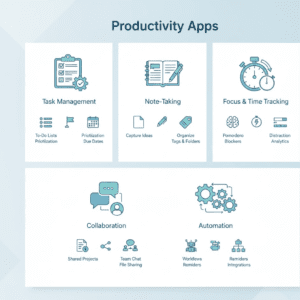
In order to achieve this efficiency, knowing different types of productivity apps is essential. The following categories overlap repeatedly, but they each satisfy a distinct need.
| Category | Purpose | Popular Apps |
|---|---|---|
| Task Management & To-Do Lists | Schedule work in terms of daily jobs, due dates and life objectives | Todoist, Microsoft To-Do, TickTick, Trello |
| Note-Taking & Knowledge Mgmt | Collect ideas, notes and structured knowledge | Notion, Evernote, OneNote, Obsidian, Roam |
| Focus & Time Management | Enhance focus and monitor productive hours | RescueTime, Forest, Pomodone, Clockify |
| Collaboration & Communication | Facilitate team collaboration and file sharing as well as messaging | Slack, Microsoft Teams, Zoom, ClickUp and Notion |
| Automation & AI Tools | Let apps work for you with automations; Reduce repetition through simplified interactions | Zapier, Make, Grammarly, ChatGPT Plugins |
How Users Decide What Productivity App to Use
Every app isn’t for every user. The best one is a matter of workflow, vocation and personal preference. Here’s a detailed guide to help you choose apps:
- Understand Requirements: Decide whether it is tracking tasks, improving focus, better collaborating or automating their work that you are helping customers’ manage.
- Compare Features: Match features like cross-platform support, reminders, integrations and offline access.
- Test Usability: In most cases, apps provide a free trial – users should take the time to ensure the user interface is intuitive and aligns with their way of working.
- Think of Cost: Free versions are enough for students, but pros could also use a few extra premium features that allow for more sophisticated collaboration.
- Integration into Existing Tools: Productivity increases when apps integrate seamlessly with the calendar, email and other tools.
Example: Todoist or Trello?
| Feature | Todoist | Trello |
|---|---|---|
| Primary Use | Task & project management | Kanban-style project boards |
| Platforms | iOS, Android, Web, Windows, macOS | iOS, Android, Web |
| Reminders & Notifications | ✔ Yes | ✔ Yes (with Power-Ups) |
| Collaboration | ✔ Limited (Premium) | ✔ Strong, team-oriented |
| Best For | Individuals & small teams | Teams & visual project management |
Advantages of Using Productivity Apps Regularly
- Logging Responsibility: With tasks tracked, you are more accountable.
- Improved Time Management: Overview from time tracking applications allows to organize the high-priority tasks.
- Less Stress: Try to keep everything together so you have fewer things to worry about in your head.
- Career Progression: Move through projects with ease, meeting deadlines without haste.
- Academically Strong: Learners can juggle learning, assignments and their life.
Key Trends in Productivity Apps
We’re not dealing with static workflows in modern productivity tools — they shift as technology trends shift:
- AI-Enhanced Productivity: AI helpers like ChatGPT are now found in note-taking, writing, and scheduling apps.
- Cross-Platform Syncing: Apps such as Notion and Todoist are great for desktop, mobile, or the web.
- Gamification: Apps like Forest and Habitica apply game mechanics to productivity habits.
- Automation Integration: Integrate apps via Zapier or Make and automate your work without the need for manual interference.
Conclusion
For professionals and students alike, productivity apps serve more than a practical function — they are frameworks that order time, tasks and creativity. With features that boost concentration and encourage collaboration and automation, these apps make it easier to manage one’s days—and fun while they’re at it.
The next phase is to examine apps that are better at managing task and to-do lists, and ultimately provide users with actual choices readers can make today.
Task Management & To-Do List Apps – Tame your life like a boss

It’s an age of multitasking, where we all seem to have 10 things going at once. Task management apps are essential to personal and professional productivity, allowing you to divide tasks into projects, keep track of your progress, and remain responsible at all times. Students and professionals can take advantage of these apps because they offer a clear process, format and visual indication of what should be done.
This guide covers the best task-management apps, including their features, pros and cons, use cases, and other criteria to help you decide which is best to manage your tasks.
The Importance of Task Management Apps
To-do lists themselves are stored on task management apps, but this category of app lets you do so much more. They help users:
- Sort tasks by due date or priority.
- Boards, list and calendar views to help you organize work See your workflow.
- Collaborate with teams or classmates.
- Enable reminders to never miss a due date.
- Track your progress to keep all the things ya wanna do with ya, and for accountability.
Professionals can work to deadlines just in time, and students can juggle their studies, assignments and social lives.
Top Task Management Apps
Todoist
Overview: Todoist, for individuals and teams. (Photo courtesy of Todoist)
Why it’s great: One of the most popular task management systems available. It provides the ability to users for managing tasks, setting deadlines and monitoring productivity trends.
Key Features:
- Task creation with priority levels
- Daily, weekly, or monthly goals for any repeating tasks
- Project management in your own way with labels, filters, and sections
- Productivity tracking with Todoist Karma
- Multiple platform support: Web, iOS, Android macOS, Windows
Pros:
- Clean, user-friendly interface
- Robust reminders and scheduling
- Great for both personal and professional use
- Integrates with over 60 apps (Google Calendar, Slack, Zapier)
Cons:
- Advanced features require premium subscription
- Limited collaboration for free users
Best For: People or small groups who want Windows-based structured task tracking with a little more flexibility than Trello.
Microsoft To-Do
Summary: For users seeking a simple, free and reliable task manager that works well with Microsoft Office 365, this is it.
Key Features:
- My Day lets you schedule what to-dos you’d like to get done each day
- Checklists with reminders and due-dates
- Subtasks for the decomposition of complex tasks
- Outlook tasks and Teams integration
- Cross-platform support
Pros:
- Completely free
- Deep integration with Microsoft ecosystem
- Clean and minimal interface
Cons:
- Fewer advanced features than Todoist
- Limited reporting or analytics
Best For: Students and professionals already accustomed to Microsoft products.
TickTick
Summary: TickTick is an all-in-one task manager app with a to-do list and notes incorporated, while also featuring habit tracing and calendar integration.
Key Features:
- Task lists, priorities, and deadlines
- Pomodoro timer for focused work
- Calendar view and habit tracker
- Voice Injection and Intelligent Date Recognition
- Multi-platform support
Pros:
- Combines task management and time management
- Flexible and visually appealing
- Affordable premium plan
Cons:
- Limited integrations compared to Todoist
- Some features hidden behind premium version
Best For: Task management and productivity insights in a single app. Why We Love It: This platform allows you to create projects using specific action steps instead of simply adding a title to a to-do list.
Trello
Overview: Planning your schedule in an easy to read visual format. Trello is a visual project management tool, perfect for teams and collaborative projects.
Key Features:
- Boards, lists, and cards to manage tasks
- Labels, checklists, and due dates
- Power-Ups for integrations (Calendar, Slack, Zapier)
- Real-time collaboration
- Multi-platform support
Pros:
- Highly visual and intuitive
- Great for team projects and workflows
- Free version is very functional
Cons:
- Less suitable for personal task tracking of small tasks
- Can become cluttered with large projects
Best For: Project or group assignment-based teams of up to 25 users.
Asana
Summary: Asana is a feature-rich task and project management tool for business teams that includes tracking, reporting, access control and collaboration tools.
Key Features:
- Task lists and boards
- Timeline and calendar views
- Project templates for various workflows
- Features for team working together: comments, attachments and task-assignment
- Multi-platform support
Pros:
- Excellent for complex projects
- Strong team collaboration tools
- Detailed reporting and task tracking
Cons:
- Overkill for personal or small-scale use
- Premium subscription needed for advanced features
Best For: Mid to large-size professional teams requiring extensive project overview.
Comparison Table: The Best Task Management Apps
| App | Platforms | Best For | Key Features | Free/Paid |
|---|---|---|---|---|
| Todoist | Web, iOS, Android, Windows, macOS | Individuals & small teams | Priority tasks, labels, Karma | Free/Premium |
| Microsoft To-Do | Web, iOS, Android, Windows, macOS | Microsoft ecosystem users | My Day, Outlook integration | Free |
| TickTick | Web, iOS, Android, Windows, macOS | Individuals wanting focus + tasks | Pomodoro timer, habit tracker | Free/Premium |
| Trello | Web, iOS, Android, Windows, macOS | Teams & project boards | Kanban boards, Power-Ups, collaboration | Free/Premium |
| Asana | Web, iOS, Android, Windows, macOS | Professional teams | Timeline, templates, reporting | Free/Premium |
Tips for Maximizing Task Management Apps
- Prioritize Tasks: Use labels or priority levels to focus on high-impact work first.
- Use Recurring Tasks: Automate regular tasks to reduce cognitive load.
- Integrate With Calendars: Sync with Google Calendar or Outlook for holistic planning.
- Set Realistic Goals: Avoid overloading your daily to-do list to prevent burnout.
- Leverage Analytics: Track completed tasks to identify productivity patterns.
Task Management for Students vs Professionals
Differences between the task management of students and professionals:
- Students: Want simplicity, reminders and to know their deadlines. You can stick with apps like Microsoft To-Do or Todoist.
- Professionals: Need more features such as collaboration, project boards and analytics. Apps like Asana or Trello are perfect.
Conclusion
Productivity all starts with task management apps. Users can boost organization, focus and efficiency by picking the right app for their needs, team size and workflow. From basic task lists to visual Kanban boards and team collaboration systems, the current digital toolbox has made managing tasks not only simpler but also more strategic.
Note-Taking & Knowledge Management Apps – Capture, Organize, and Retrieve Knowledge Efficiently

As a professional in the field, or even as an academic student there is nothing more important than being able to capture and organize information effectively – we do this for our tasks, why not our knowledge. Today’s note-taking and knowledge sharing apps aren’t just simple digital notebooks—they serve as central hub for ideas, research, projects and collaborative work.
This is the section of some of the best note-taking and knowledge management apps and their features, pros/cons along with use-cases for professionals and students.
Why Note-Taking and Knowledge Management Apps Matter
Note-taking apps are not for text storage only; they make text live. These tools allow you to:
- Capture Ideas Quickly: From meeting notes to sudden insights
- Organize Knowledge: Structure notes with tags, folders, or databases
- Search & Retrieve Instantly: Powerful search functions prevent information loss
- Collaborate with Teams or Study Groups: Share notes, comment, and co-edit
- Integrate with Other Productivity Tools: Link notes with tasks, calendars, and documents
And without such apps, information can be scattered all over devices and emails and paper notebooks, leading to lost time and simmering frustration.
Top Note-Taking & Knowledge Management Apps
1. Notion: The All-in-One Digital Workspace
Overview: Notion is an all-in-one workspace for notes, projects, databases, and collaboration, making it ideal for both individuals and teams.
- Key Features:
- Notes, wikis, and databases in one workspace
- Drag-and-drop interface for easy customization
- Templates for productivity, project management, and study
- Collaboration: shared workspaces, comments, mentions
- Multi-platform support: Web, iOS, Android, macOS, Windows
Pros:
- Extremely flexible and customizable
- Combines notes, tasks, and databases
- Powerful collaboration features
- Frequent updates and community templates
Cons:
- Steep learning curve for beginners
- Can be slow with large databases
Ideal For: Project managers and students building an organized study system.
2. Evernote: The Research & Archiving Veteran
Background: One of the most venerable note-taking apps is Evernote, favored for its web-clipping features, its organization and search capabilities.
- Key Features:
- Notes with text, images, audio, and attachments
- Web clipping tool for research and articles
- Tagging system for organization
- Offline access and sync across devices
Pros:
- Excellent for research-heavy work
- Powerful search and organization
- Multi-platform support
Cons:
- Free plan is limited
- Interface feels dated compared to newer apps
Ideal For: Users who utilize research, references and web clipping.
3. OneNote: The Digital Binder Experience
Summary: The software Microsoft OneNote is a popular choice if you’re looking for a digital notebook, whether it’s part of your job, class notes or personal memos.
- Key Features:
- Notebook, section, and page hierarchy
- Drawing and handwriting support (stylus/tablet)
- Embedding documents, spreadsheets, and audio
- Integration with Outlook and Teams
Pros:
- Free with Office 365
- Great for handwritten notes
- Flexible organization with sections and pages
Cons:
- Can feel cluttered
- Limited advanced database features
Best For: Students Or professionals who require sturdy notebook-style organization.
4. Obsidian: Building Your Personal Knowledge Base
Description: Obsidian is a knowledge base that lets you build interconnected notes using Markdown and the local folder structure of your system.
- Key Features:
- Markdown-based notes
- Bidirectional linking for knowledge networks
- Graph view to visualize connections between ideas
- Plugins for customization (task tracking, calendar, kanban)
Pros:
- Ideal for research and knowledge building
- Offline-first and secure
- Highly customizable with plugins
Cons:
- Not beginner-friendly
- Requires manual setup for optimal use
Ideal For: Professionals, researchers and students constructing long-term knowledge systems.
5. Roam Research: The Networked Thought Tool
Summary: Roam Research is a networked note-taking tool to help you organize your research, ideas and notes all in one place.
- Key Features:
- Daily notes with automatic backlinks
- Bi-directional linking for idea connections
- Graph overview of all notes
- Markdown support and block referencing
Pros:
- Great for connecting ideas
- Encourages knowledge retention and research
- Flexible for personal or professional knowledge bases
Cons:
- Expensive compared to alternatives
- Can feel overwhelming for simple note-taking
If You: Do research-focused work or are a student. Professional development-description oriented work is the meat and potatoes of what we do.
At a Glance: Note-Taking & Knowledge Management Comparison
| App | Platforms | Best For | Key Features | Free/Paid |
|---|---|---|---|---|
| Notion | Web, iOS, Android, Windows, macOS | All-in-one workspace | Notes, databases, templates, collaboration | Free/Premium |
| Evernote | Web, iOS, Android, Windows, macOS | Research-heavy users | Web clipping, tagging, multimedia notes | Free/Premium |
| OneNote | Web, iOS, Android, Windows, macOS | Notebook-style organization | Handwriting, sections, Office integration | Free |
| Obsidian | Windows, macOS, Linux, iOS, Android | Knowledge network builders | Markdown, backlinks, graph view | Free/Premium |
| Roam Research | Web, iOS | Idea linking & research | Bi-directional linking, graph overview | Paid |
Strategies for Maximizing Your Note-Taking Apps
- Pre-made Templates: Save time by using already made templates for projects, lectures, meetings with notes.
- Tag & Link Notes: Help find the information you are looking for by creating connections.
- Weekly or Monthly Reviews: Help keep what you’ve learnt and track your progress through periodic review.
- Integrate with Task Management: Associate notes to tasks for actionable workflows.
- Leverage Collaboration Tools: Collaborate and study with other students using built-in Notes sharing.
Note-Taking: Academic vs. Professional Needs
- Students: Want organized notes, assignment tracking and study organization. Apps such as OneNote or Notion are good candidates.
- Professionals: Need Project Documentation with Knowledge Management and Collaboration. Apps such as Notion, Obsidian or Roam Research are better suited for this complexity.
Conclusion
Apps that help us take notes and manage knowledge are crucial for recording our thoughts, organizing information, and turning raw knowledge into something actionable. From straightforward notebooks like OneNote to networked systems like Obsidian and Roam, the best tool for you will depend on your workflow, requirements and team dynamics.
Priority & Productivity Tools for Tracking To-Do

Even with the best task management and note-taking systems, productivity can falter without effective focus and time management. Distractions, multitasking, and unstructured work can reduce output and increase stress.
Focus and time management apps help users concentrate, track how time is spent, and optimize workflows, turning busy schedules into productive routines. This section explores the top apps, their features, and strategies for maximizing focus and time efficiency.
Why You Need Focus and Time Management Apps
Time is extremely limited and we squander it. These apps provide:
- Pomodoro Time Blocks: Tools like Pomodoro Timers that instill periods of focused work.
- Time Uses Insight: Record daily/weekly/monthly activity to see the inefficiency.
- Distraction Management apps: Block social media and track unproductive habits.
- Responsibility: Reminders and tracking progress keep users on track.
For students and professionals alike, becoming great at time management means increased outputs, reduced stress and improved results.
Best Focus and Time Management Apps
RescueTime
Summary: RescueTime is an app that runs in the background and watches how time is spent on apps and websites to deliver a detailed report on productivity.
Key Features:
- Automatic tracking of application and website usage
- Daily and weekly productivity reports
- FocusTime sessions to block distractions
- Goal setting for productive hours
- Multi-platform: Windows, macOS, Android
Pros:
- Insightful analytics on work habits
- Automatic and low-effort tracking
- FocusTime blocks help eliminate distractions
Cons:
-
- Limited control over tracking for specific apps
- Requires subscription for full feature set
Good For: Professionals and Students Who Want Detailed Insights Into Their Digital Habits.
Forest
Summary: Forest uses gamification to help you focus on growing virtual trees, so you can’t touch your phone.
Key Features:
- Pomodoro-style focus timer
- Reward system for sustained focus
- Option to plant real trees via app donations
- Focus tracking and statistics
- Multi-platform: iOS, Android, Chrome extension
Pros:
- Engaging gamification encourages focus
- Helps reduce phone distractions
- Visual motivation for sustained work
Cons:
-
- Not suitable for tracking computer-based work
- Limited analytics for advanced users
Ideal for: Students and professionals who are having trouble with distractions from the phone.
Pomodone
Summary: Pomodone is a cross between a task manager and a Pomodoro timer and can be connected to apps such as Trello, Todoist, Asana.
Key Features:
- Built-in Pomodoro timer for time-blocked work
- Integration with multiple task management tools
- Tracking of completed Pomodoro sessions
- Reports for productivity analysis
- Multi-platform support
Pros:
- Bridges task management and focused work
- Supports integration with popular productivity apps
- Lightweight and user-friendly
Cons:
-
- Limited free plan
- Requires linking with task management apps for full functionality
Ideal for: People who want to mix task tracking with structured focus sessions.
Clockify
Overview: Clockify is a time tracking app that lets you track work hours and productivity. Ideal for freelancers, teams, and students.
Key Features:
- Manual and automatic time tracking
- Project and task-based reporting
- Billable hours tracking for freelancers
- Team management and collaboration
- Multi-platform support
Pros:
- Free plan covers most use cases
- Detailed reports for analysis
- Excellent for team time tracking
Cons:
-
- Interface can be overwhelming for beginners
- Focus features are minimal
Best For: Freelancers, teams and professionals who need to track time in details.
Focus@Will
Summary: Focus@Will is a new music and sound app based on neuroscientific research.
Key Features:
- Curated music channels optimized for productivity
- Focus session timers
- Personalized music recommendations
- Analytics on focus patterns
- Web, iOS, and Android support
Pros:
- Increases focus using science-backed music
- Reduces mental fatigue during long work sessions
Cons:
-
- Paid subscription required
- Effectiveness varies by user preference
Best For: Students + professionals who are more productive with background music.
Comparison Chart: Focus & Time Management Apps
| App | Platforms | Best For | Key Features | Free/Paid |
|---|---|---|---|---|
| RescueTime | Windows, macOS, Android | Digital habit tracking | Automatic tracking, FocusTime, reports | Free/Premium |
| Forest | iOS, Android, Chrome | Phone distraction management | Gamified focus timer, virtual trees | Paid |
| Pomodone | Windows, macOS, iOS, Android | Task+focus integration | Pomodoro timer, task integration | Free/Premium |
| Clockify | Web, Windows, macOS, iOS, Android | Time tracking & productivity | Project tracking, reports, billing | Free/Premium |
| Focus@Will | Web, iOS, Android | Music-based focus | Curated productivity music, analytics | Paid |
Ways to Optimize Focus and Time Management Apps
- Schedule Time Blocks: Prioritize uninterrupted blocks of time for your most important tasks.
- Follow Your Activities: Keep your unproductive behavior in check by tracking them.
- Integrate Apps: Make use of Pomodone or RescueTime with project management to bring whole productivity.
- Ditch Digital Distractions: Apps like Forest or FocusTime can help keep us away from social media during work hours.
- Keep It Real: Don’t over-schedule and give yourself small breaks to keep up energy and focus.
Focus & Time Management: Students vs. Working Professionals
- Students: Apps like Forest and Pomodone keep up focus during work blocks, decrease distractions and efficiently manage homework.
- Professionals: RescueTime and Clockify are tools that will give you inside looks of your work patterns, help you become effective, and guide time for projects.
Conclusion
Attention and time regulation instruments can help managers in the transformation from planning to execution. By monitoring habits, managing distractions and setting work periods, students and professionals can ensure that tasks which have been tracked in the above sections are completed effectively and consistently.
Collaboration & Communication Tools – Work Smarter Together

In today’s digital era, productivity isn’t just about managing your own tasks—it’s also about working efficiently with others. Collaboration and communication tools allow professionals and students to coordinate projects, share knowledge, and streamline teamwork, whether they are in the same office, across different locations, or participating in study groups.
This section explores the best collaboration and communication apps, highlighting features, pros and cons, and strategies for effective teamwork.
The Importance of Collaboration and Communication Tools
As great as you may be at task and time management, your team’s productivity can take a hit without clear communication and coordination. These apps help users:
- Centralized Communication: Eliminate the endless back and forth across emails, chat apps, & documents.
- Manage Task and Project: Ensure that everybody is on point with regard to deadlines, responsibilities, and progress.
- Share Wisdom and Assets: Serve as repository of critical documents, templates, and notes.
- Facilitate Remote Work: Connect distributed teams together anyways.
- Increase accountability: Know who’s responsible for what, so nothing falls through the cracks.
Among students, collaborative tools enable group work, shared research and study parties. For professionals, they speed up workflows, increase transparency and reduce the likelihood of miscommunication.
Top Collaboration & Communication Apps
Slack
Summary: Slack is a team communications tool created as an alternative to email for internal communication and provides open channels, private groups, direct messaging as well as chat tools of the past.
Key Features:
- Channels for team, project, or topic-based communication
- Direct messaging and group chats
- Integration with task management, calendars, and productivity tools
- File sharing and searchable message history
- Multi-platform support: Web, iOS, Android, macOS, Windows
Pros:
- Centralized communication reduces email overload
- Highly customizable with apps and bots
- Powerful search feature to retrieve past conversations
Cons:
-
- Free version has limited message history
- Can become overwhelming with many channels
Best For: Professional teams that require structured, live communication.
Microsoft Teams
Summary: Microsoft Teams brings together chat, video conferencing, calling, and document collaboration into a single, integrated app – and enables exciting new ways of working.
Key Features:
- Team and private chat channels
- Video and audio conferencing
- Integration with Microsoft 365 apps (Word, Excel, OneNote)
- Shared document editing and storage
- Task and project management via Planner integration
Pros:
- Deep integration with Microsoft ecosystem
- Robust video conferencing and collaboration features
- Enterprise-grade security
Cons:
-
- Can feel complex for small teams
- Less intuitive interface compared to Slack
Best for: Businesses already invested in Microsoft 365 or large teams that need everything propertied out of the box.
Zoom
Overview: Zoom is a video conferencing and communications tool used by many organizations for remote work, online classes and socializing during the quarantine.
Key Features:
- HD video and audio conferencing
- Screen sharing and whiteboarding
- Meeting recording and transcripts
- Breakout rooms for group discussions
- Multi-platform support
Pros:
- High-quality video and reliable performance
- Scales from small teams to large webinars
- Easy to use for students and professionals
Cons:
-
- Security concerns in earlier versions (mostly resolved)
- Free plan has 40-minute meeting limit for group sessions
Best For: Teams, teachers and students who need remote or hybrid meetings.
ClickUp
Summary: ClickUp is an all-in-one productivity platform that includes project management, collaboration and task tracking.
Key Features:
- Task lists, boards, and Gantt charts
- Time tracking and goal setting
- Comments, mentions, and file attachments
- Integration with Slack, Zoom, Google Workspace, and more
- Multi-platform support
Pros:
- All-in-one solution for project management and collaboration
- Highly customizable workflows
- Free plan offers extensive features
Cons:
-
- Can feel overwhelming for beginners
- Some advanced features require paid subscription
Best For: Teams and students handling many projects with complex workflows.
Notion (Collaboration Features)
Overview: Notion doubles as a collaboration tool that lets teams share workspaces, co-edit documents and manage projects together.
Key Features:
- Shared workspaces for projects, notes, and databases
- Real-time editing and commenting
- Templates for project management, knowledge bases, and wikis
- Integration with Slack, Google Drive, and other tools
Pros:
- Flexible platform for knowledge sharing and project collaboration
- Real-time updates enhance teamwork
- Suitable for both individuals and teams
Cons:
-
- Learning curve for advanced collaboration workflows
- Offline capabilities are limited
Best For: Teams and students who want an integrated workspace for notes, projects, and collaboration.
Collaboration & Communication Apps Comparison Table
| App | Platforms | Best For | Key Features | Free/Paid |
|---|---|---|---|---|
| Slack | Web, iOS, Android, macOS, Windows | Team chat & messaging | Channels, integrations, file sharing | Free/Premium |
| Microsoft Teams | Web, iOS, Android, macOS, Windows | Enterprise collaboration | Chat, video calls, Office integration | Free/Premium |
| Zoom | Web, iOS, Android, macOS, Windows | Video conferencing | HD video, breakout rooms, screen share | Free/Premium |
| ClickUp | Web, iOS, Android, macOS, Windows | Project management & collaboration | Tasks, boards, Gantt, time tracking | Free/Premium |
| Notion | Web, iOS, Android, macOS, Windows | Knowledge sharing & projects | Shared workspaces, templates, real-time editing | Free/Premium |
Tips for Maximizing Collaboration Tools
- Designate Channels for Communication: Reserve channels for projects or categories to avoid unnecessary noise.
- Integrate With Task Managers: Connect Slack or Teams with Trello, Asana, ClickUp to work more efficiently.
- Use Video Conferencing for Difficult Chat: Minimize confusion by taking chat and video calls together.
- Utilize Shared Documents: Concentrated knowledge avoids to work over and over again on an issue which has already been solved before.
- Adopt Collaboration Norms: Agree upon a set of norms for sharing, responding and saving to enable effective collaboration.
Collaboration for Students vs Professionals
- Students: Utilize technology tools such as Zoom, Notion or Slack to ensure your group projects, study sessions and assignment coordination stays on track.
- Professionals: For team alignment, project tracking, cross-departmental communication: Microsoft Teams, ClickUp or Slack.
Conclusion
Individual productivity is important, but collective achievement is critical—so make sure your team has what they need to drive results. They facilitate communication, streamline the execution of a project and make sure that everyone is working towards shared goals.
The next and last part of the productivity puzzle is automation along with AI-driven tools, which can help eliminate repetitive tasks, integrate apps and use AI for writing, research and workflow optimization.
Automation & AI-Powered Productivity Tools – Work Smarter, Not Harder

Even with task management, note-taking, focus, and collaboration tools, much of a user’s productivity is still spent on repetitive, mundane tasks. Automation and AI-powered tools help users streamline workflows, reduce manual work, and enhance decision-making.
For professionals and students, these tools are game-changers—they allow users to focus on high-impact work while technology handles the repetitive or time-consuming tasks.
The Importance of Automation & AI Tools
Time: There’s a lot of things we can do at the dime and stop doing, let’s automate those processes i.e. Scheduling, reminder system, file organization etc.
- Error Minimization: Human errors are minimized by using automation through repetitive work.
- Increased Productivity: AI helps in writing, researching and decision-making.
- Mix and Match Apps: Combine multiple productivity apps to work as one.
- Scalable: As information increases, it is relatively easy to manage larger workflows.
Best Automation & AI-Enhanced Productivity Apps
Zapier
About Zapier: Your perfect work atmosphere: As a corporate, we value work/life balance – we believe that it’s important to spend time with our friends and family.
Key Features:
- Automates repetitive tasks between apps
- Supports 5,000+ apps including Google Workspace, Slack, Trello, Notion
- “Zaps” allow triggering actions based on events
- Multi-step workflows for complex automation
Pros:
- User-friendly interface
- Extensive integrations
- Saves hours of manual work
Cons:
-
- Free plan is limited to 100 tasks/month
- Multi-step workflows require paid plan
Ideal For: Professionals and students who want to automate tasks across multiple apps
Example Workflow: New Email in Gmail → Create Task in Todoist → Notify me on Slack.
Make (Integromat)
Summary: Make (formerly Integromat) is a visual automation platform that connects apps together to enable you to automate your workflow.
- Key Features:
- Drag-and-drop workflow editor
- Real-time data sync between apps
- Prebuilt templates for common automations
- Supports advanced scenarios with filters, routers, and error handling
Pros:
- Highly flexible and customizable
- Supports complex workflows
- Powerful data transformation tools
Cons:
- Can be overwhelming for beginners
- Learning curve for advanced features
Who It’s For: Users who require more complex automation than Zapier provides.
Example Workflow: Submit form in Google Forms → Append row in Google Sheets → Notify team on Microsoft Teams.
Grammarly
Summary: Grammarly is an AI writing assistant that helps users better express their ideas, get with the times with respect to spelling and realize greater clarity and impact by optimizing the style of writing.
Key Features:
- Grammar and spell-checking
- Style and tone suggestions
- Plagiarism detection (premium)
- Integration with browsers, Microsoft Office, and Google Docs
Pros:
- Saves time proofreading
- Enhances professional writing
- Works across multiple platforms
Cons:
-
- Premium required for advanced features
- AI suggestions may require user judgment
Who It’s For: Professionals who spend their days writing emails, reports and articles; students typing up assignments.
ChatGPT & AI Productivity Plugins
Summary: Researching? Writing? Summarizing Your text here.. When it comes to research, artificial intelligence can help with anything from writing and summarizing to organically developing ideas.
- Key Features:
- Text generation and summarization
- Brainstorming ideas or outlines
- Answering questions and problem-solving
- Integration with apps via APIs or browser plugins
Pros:
- Increases speed of content creation
- Enhances creativity and research efficiency
- Flexible across many tasks
Cons:
- AI outputs may require verification
- Subscription needed for advanced features
Who It’s Great for: Professionals, students and other individuals requiring fast content creation or research help.
Example Workflow: Email drafts → Research articles Summaries → List formatted task for actions items.
Trello + Butler Automation
Summary: Trello Butler Automation helps in automating the Trello Boards, Lists and Workflow using automated commands.
Key Features:
- Rule-based automation for tasks
- Scheduled commands and due date triggers
- Card and board actions automated
- Multi-step actions for workflows
Pros:
- No coding required
- Customizable automation rules
- Increases productivity without external tools
Cons:
-
- Limited automation on free plan
- Can be complex for large boards
Ideal For: Teams, students using Trello for task and project management.
Comparison Table: Automation & AI-based Productivity Tools
| App | Platforms | Best For | Key Features | Free/Paid |
|---|---|---|---|---|
| Zapier | Web | Cross-app automation | Connect 5,000+ apps, multi-step workflows | Free/Premium |
| Make | Web | Advanced automation | Drag-and-drop workflows, data transformation | Free/Premium |
| Grammarly | Web, iOS, Android, Windows, macOS | Writing improvement | Grammar, style, tone suggestions | Free/Premium |
| ChatGPT & Plugins | Web, iOS, Android | AI-assisted content & research | Text generation, summarization, ideas | Free/Paid |
| Trello + Butler | Web, iOS, Android | Task automation within Trello | Rule-based automations, scheduled commands | Free/Premium |
How to Get the Most From AI and Automation Tools
- Pinpoint Repetitive Tasks: Begin with those tasks that steal your time but are low in value.
- Integrate More Tools: Connect calendars, task apps and communication tools with Zapier or Make.
- Leverage A.I for Drafting & Summarization: Save hours when writing or researching.
- Test Automation Bit By Bit: Begin small and grow in complexity.
- Watch and Tweak Processes: Auditing automation to work more effectively.
Automation for Students vs Professionals
- Students: Use Zapier, ChatGPT or Trello Butler to automate reminders for assignments and other curricular activities, research organization and note summaries.
- Professionals: Use Make, Zapier, Grammarly or AI assistants to automate reporting, email workflows, content creation and project tracking.
Conclusion
Automation and AI-enabled tools are the last block of a productivity stack, taking a user’s workflow from manual labor to automated smarts. By building automation and AI into task management, note taking, focus, and collaboration tools professionals and students can save time reduce mistakes and work on high impact projects.

Final Thoughts on Building a Complete Productivity Stack
By aggregating all six dimension from this pole guide:
- Task Management & To-Do List Apps – Plan and prioritize tasks.
- Note-Taking & Knowledge Management apps – Collect and organize information.
- Focus & Time Management Tools – Keep concentration and manage the time.
- Collaboration & Communication Tools – Work from anywhere with teammates and classmates.
- Automation & AI-Powered Tools – Lower your workload and make more informed decisions.
Users can build a fully integrated productivity ecosystem. This approach not only increases efficiency but also reduces stress, enhances learning, and supports professional growth.
With the tools and strategies outlined in this guide, students and professionals are equipped to work smarter, stay organized, and achieve their goals consistently.
really helpful, appreciated
Thank you for sharing superb information. Your website is very cool. I’m impressed by the details that you have on this website.
I love this blog.