9 Free PC Software to Boost Speed & Performance
Over time, even a powerful computer can begin to feel sluggish. Programs take longer to open, boot times increase, and everyday tasks become frustratingly slow. Fortunately, users no longer need to invest in expensive software to fix these issues. In 2026, free PC software to boost speed & performance has become far more capable, reliable, and accessible than ever before.
Modern PC optimizer tools now offer intelligent cleanup, startup control, memory management, and performance monitoring — all without a price tag. Whether someone uses their computer for work, study, gaming, or casual browsing, the right free tools can restore speed and stability while extending the life of the system.
This guide explores how free PC optimization software works, why systems slow down over time, and how users can safely speed up their machines using trusted, safe free tools. The focus remains on practical, real-world improvements rather than risky shortcuts or aggressive tweaks.
Why Your PC Slows Down Over Time (And How Free Software Helps)
Computers rarely slow down overnight. It’s normal for performance to start becoming sluggish once you have piles of software, files and background processes jumbling everything up. Once you understand the reasons behind this issue, it is easier to put the correct fixes in place using some of these free PC maintenance tools.
While third-party tools are incredibly helpful, we always recommend starting with basic tips to improve PC performance from Microsoft to ensure your core OS settings are optimized first.
Common Causes of Slow PC Performance
There are many causes of system degradation:
- Junk file buildup: Temporary files, cache data and residual installation files will gradually eat up your disk space. These files will accumulate in the system and waste a large portion of HDD space if there is no junk file cleaner.
- Too many startup programs: Excess apps that open automatically when the OS boots can add a long time to start up. A good startup manager is critically important for finding and disabling unnecessary entries.
- Unused software and bloatware: Preloaded apps and programs that nobody uses only take up resources. Knowing how to remove bloatware can make space on CPU and memory.
- Obsolete drivers or software: Obsolete drivers can lead to incompatibility or destabilization of the system and should be updated frequently.
But these problems are not only issues, they’re fixable. Free optimization apps take care of them in turn and all except the last can be diagnosed with a very basic level of know-how.
What Free PC Optimization Software Can Do
A good PC optimizer integrates various maintenance functions under one roof. So, instead of wasting time hunting issues, let users leverage towards automation and smart scans.
Typical features include:
- System Cleaner, used to clear junk files and browser cache
- You may need cleanup to recover wasted disk space.
- Simple performance monitoring dashboards to troubleshoot CPU and memory issues
- Basic optimization tips that is not going to compromise on system stability
These tools focus on measurable improvements rather than exaggerated claims, making them suitable for everyday users.
How to Speed Up Your PC for Free (Beginner-Friendly Guide)
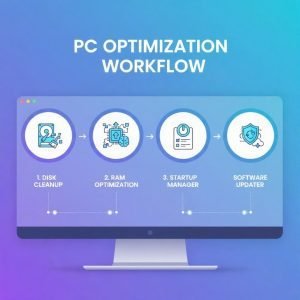
Many users think to make a computer go faster they have to pay for software or upgrade hardware. In fact, figuring out how to make your PC faster for free is usually more than sufficient to achieve acceptable performance (or even amazing speed).
Step-by-Step Free PC Tune-Up Process
A novice-friendly optimization process often has a structure that you can usually expect to see:
- Run a full system scan
Most free utilities begin with a scan that identifies junk files, startup issues, and basic errors. - Apply a one-click tune-up
Many tools offer a one-click tune-up feature that safely applies recommended fixes without user intervention. - Clean temporary and unused files
Built-in disk cleanup removes unnecessary data that slows file access. - Review startup programs
Using a startup manager ensures only essential apps load at boot. - Update drivers and software
A basic software updater or driver updater helps prevent compatibility problems and performance drops.
When performed monthly, this process forms the foundation of reliable free PC maintenance.
What to Avoid When Using Free PC Tools
All free tools were not created equal. However, users are warned to be wary about features that pr
Common pitfalls include:
- Using too many registry cleaner applications: A registry cleaner may provide some benefits, but should be used judiciously, if at all.
- Installing bundled extras: Some utilities want to slip in “extras” when you install them.
- Overlooking privacy settings: Opting for safe free tools with clear data policies can also aid in protecting information.
If you use it wisely free tools retains and even enhance your performance without adding new problems.
Best Free PC Software to Boost Speed & Performance (2026 Picks)
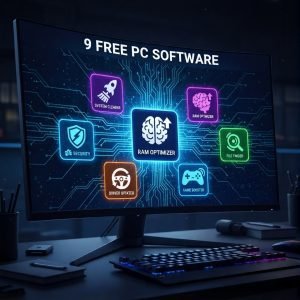
The best free tools commission themselves there to specific optimization tasks, rather than trying to be all things to everyone. Here are the most useful classes of free software that improve speed and stability.
Free System Cleaner Tools for Junk & Cache Removal
-
BleachBit – Best open-source alternative to CCleaner (Privacy focused).
-
Wise Disk Cleaner – Great for deep junk file removal.
A best cleaner app will remove clutter and unused files that are quietly sapping your system’s resources. These free system cleaner programs only tend to focus on browser cache, temporary folders and leftover installer files.
Benefits include:
- Faster file access
- Reduced disk usage
- Improved system responsiveness
The majority of these scrubbers also have its own junk file eliminator — safely recognizing those files that are up for deletion.
Best Free Startup Manager for Faster Boot Time
- Autoruns (Sysinternals) – The most powerful tool to see every hidden startup item.
- Glary Utilities (Free) – Simple one-click maintenance for beginners.
Boot speed is directly affected by startup programs. Below is a list of the free startup manager tools that allow new or advanced users to:
- View all startup entries
- Disable non-essential apps
- Reduce background CPU usage
The less number of startup items means you can experience the faster system boot up and better ability to do multitasking.
Free RAM & Memory Optimizer Tools
- Razer Cortex – Excellent for gamers to reclaim RAM before launching a game.
Memory usage plays a critical role in overall performance. A free RAM & memory optimizer helps reclaim unused memory by managing background processes more efficiently. Optimizing your hardware is only half the battle. Once your system is running smoothly, check out our list of the best free productivity apps to help you stay organized and make the most of your faster PC.
While modern operating systems handle memory well, these tools can still benefit older systems or computers with limited RAM.
Free Disk Cleanup & Defrag Tools (HDD vs SSD)
- Defraggler – Best for traditional HDDs (by the makers of CCleaner).
- SSD Tweaker – Essential for optimizing SSD health without defragging.
Storage optimization depends heavily on the type of drive in use.
- Defragmentation can improve performance on traditional hard drives by reorganizing fragmented files.
- For SSDs, SSD optimization focuses on trimming unused blocks rather than defragging.
Understanding this distinction prevents unnecessary wear and ensures correct optimization.
Best Free Utilities for Windows 11 and Windows 10 Users
When it comes to optimization tools, compatibility makes a difference. Today, many software developers create their products for today’s operating systems.
Best Free Utilities for Windows 11 and Windows 10 Users
Compatibility matters when selecting optimization tools. Many developers now design software specifically for modern operating systems.
Windows 11 Optimizer Tools That Actually Work
A dedicated Windows 11 optimizer aligns with newer system architecture, background processes, and security features. These tools typically integrate better with modern task scheduling and resource management.
Compatibility Tips for Older Windows Versions
Users running Windows 10 or earlier should look for:
- Regular updates
- Lightweight operation
- Built-in performance monitor features
This ensures smooth operation without unnecessary system strain.
Free AI vs Traditional PC Optimization Software
As technology advances, optimization discussions are now starting to include AI-enabled tools. Nevertheless, traditional optimization solutions contribute significantly to the stable performance.
Do AI-Powered Optimizers Improve Performance?
Some modern tools use automation and intelligent scanning to recommend fixes. These often resemble enhanced versions of a one-click tune-up, where users can quickly apply system improvements without technical steps.
AI-driven features typically assist with:
- Identifying background processes that consume excess resources
- Suggesting cleanup schedules
- Offering performance insights through a simplified performance monitor
That said, AI-powered tools still rely on the same fundamentals as traditional utilities: cleaning junk files, managing startup entries, and optimizing disk usage. They enhance usability but do not replace core optimization principles.
When Traditional System Cleaners Are Still Better

Classic system cleaner tools remain essential because they:
- Provide direct control over cleanup actions
- Focus on predictable, safe optimizations
- Require fewer system resources
For most users, combining a traditional cleaner with responsible usage habits delivers better results than relying solely on automated AI recommendations.
Free PC Maintenance Best Practices for Long-Term Performance
Optimization is not a once-and-done exercise. Regular free PC maintenance will keep your computer clean and staying at peak performance preventing slow down before it happens.
Weekly and Monthly Maintenance Checklist
Just a little system upkeep goes a long way:
Weekly tasks
- Get rid of temporary files with disk cleanup
- Check the CPU and Memory usage with Performance monitor
Monthly tasks
- Run a PC optimizer scan
- Check what starts or open a file with StartUp manager
- Use a software updater to hunt down old programs
This method reduces the performance decay, and doesn’t modify hardware if it is not needed.
How to Keep Your PC Fast Without Extra Software
You don’t always need third-party applications to maintain a high-performing system. Windows has several built-in tools that, when used correctly, can keep your machine running at its maximum potential without the need for external “cleaner” utilities.
1. Disable Startup Apps Manually
Many programs set themselves to launch the moment you log in, which drains CPU and RAM before you even start working.
-
How to do it: Press
Ctrl + Shift + Escto open Task Manager, go to the Startup tab, and right-click to “Disable” any apps you don’t need immediately.
2. Regularly Uninstall Bloatware
Pre-installed software (bloatware) from manufacturers can take up gigabytes of space and run background services that slow you down.
-
How to do it: Go to Settings > Apps > Installed Apps and remove any factory-installed software you never use.
3. Keep the Operating System Updated
Microsoft frequently releases patches that optimize system kernel performance and fix bugs that cause memory leaks.
-
How to do it: Go to Settings > Windows Update and click Check for updates.
4. Leverage “Storage Sense”
Instead of using risky registry cleaners, use Windows’ own Storage Sense to automatically clear temporary files and empty your Recycle Bin.
-
How to do it: Search for “Storage Sense” in the Start menu and toggle it to On.
Pro Tip: Managing your system manually works alongside optimization software and significantly decreases your reliance on “vicious” cleanup utilities that can sometimes do more harm than good.
Free PC Software Categories That Deliver the Most Value
Rather than putting in a bunch of competing tools it’s better to use software designed to fix specific performance issues.
Lightweight and Portable Optimization Utilities
This is a small / portable utility that does not require installation and uses very little resources. These tools are ideal for:
- Older systems
- Quick diagnostics
- Temporary performance fixes
Non-persistent Portable tools are popular amongst the technician community and among those more conscious about security.
Free Driver Updater and Software Updater Tools
Outdated drivers can lead to lag, crashes and other bugs. A free driver download allows hardware to run as per the operating system requirements.
Also preventing applications from getting sluggish and insecure is a software updater. Free versions are typically restricted in the update frequency, but still as good and almost always more than enough for a home user.
Free Game Booster and FPS Optimizer (For Gamers)
- IObit Driver Booster (Free) – The most popular tool for finding missing drivers.
- Patch My PC – The best “set it and forget it” tool for keeping 300+ apps updated.
Gamers are on the lookout for smoother frame rates and less lag. By A free game booster & FPS optimizer temporarily shuts down background processes and excessive Windows/Explorer animations.
- Closing unnecessary background processes
- Ability to rank the usage of CPU and Memory by the game
They are perishable for power on or off so enhancements can be tested with minimal modifications, specifically for mid-tier setups.
Understanding Disk Optimization: HDD vs SSD
The type of storage is crucial in the optimization strategy.
When Defragmentation Helps Performance
Defragmentation on classic hard drives works by rearranging files in a more coherent manner, thereby reducing read time and increasing responsiveness. Defragging now and then can make a significant difference for older systems.
Why SSD Optimization Is Different
Traditional defragging is useless and potentially dangerous for SSD drives. SSD optimization focuses on:
- TRIM support
- Firmware updates
- Maintaining free space
Contemporary optimization software automatically identifies the drive type and utilize the right technic.
Safety, Privacy, and Trust in Free PC Tools
The more capable free tools become, the more aware users need to be.
Choosing Safe Free Tools
The right safe free tools have the following features in common:
- Clear privacy policies
- No forced installations
- Transparent permissions
Avoid tools claiming miraculous speed gains or those that need a lot of power/OS access.
The Truth About Registry Cleaners
A registry cleaner will remove the invalid entries yet can have but negligible effect on overall system performance. Overuse may introduce instability. The Windows registry cleaning should be only an optional task, it is usually unnecessary.
Free Utilities Suite vs Single-Purpose Tools
Other developers round up a host of features into a free utilities suite, providing cleanup, optimization and updates all in one handy bundle.
Advantages of a Free Utilities Suite
- Centralized dashboard
- Simplified maintenance
- Suitable for beginners
When Single-Purpose Tools Are Better
- Greater control
- Lower system resource usage
- Reduced risk of unnecessary changes
The decision between them is based on comfort, on the one hand, and system needs, or convinience.
Who Benefits Most from Free PC Optimization Software
The benefits vary from user to user based on where they need it the most.
Students and Remote Workers
- Faster boot times
- Smoother multitasking
- Reliable performance for online tools
Home Users and Casual Browsers
- Reduced system lag
- Improved stability
- Minimal learning curve
Gamers and Power Users
- Improved responsiveness
- Better resource allocation
- Enhanced gameplay stability
FAQs About Free PC Software for Speed & Performance
Are Free PC Optimizers Safe to Use?
Most safe free tools are designed to enhance system performance without compromising privacy. Trusted free software offers clear privacy policies, minimal system footprint, and limited permissions. Users should avoid unknown downloads and check reviews to ensure safety.
Can Free Tools Replace Paid PC Optimization Software?
For everyday tasks, a free utilities suite or a combination of free single-purpose tools can be sufficient. While paid software may offer advanced features, free solutions handle cleanup, disk optimization, and one-click tune-up effectively for most users.
Do Registry Cleaners Really Improve Performance?
The impact of a registry cleaner (cautious) is often minimal. While it can remove invalid entries, overuse may risk system stability. Most users benefit more from cleaning junk files, managing startup programs, and updating software.
How Often Should I Run Disk Cleanup or Optimization Tools?
Performing disk cleanup weekly and running full PC optimizer scans monthly strikes the right balance. Monitoring CPU and memory via a performance monitor ensures the system stays responsive without overloading resources.
Will Free Game Boosters Improve FPS Significantly?
A free game booster & FPS optimizer reallocates resources and temporarily disables background tasks. While it may not deliver huge gains on high-end PCs, mid-range and older systems often see smoother gameplay and reduced lag.
Advanced Tips for Maximizing Free PC Optimization
Combine Multiple Free Tools for Maximum Efficiency
- Utilize a system wash for routine cleanup
- Control startup items with a startup manager
- You can keep drivers updated using a driver updater
- Run light portable tools for immediate verification purposes
Through clever use of these tools it is possible to cobble an efficient optimization workflow without having to fork out for expensive software.
Focus on Repetitive, Not Critical, Tasks
Repetitive tasks are what free tools do best:
- Cleaning caches
- Removing temporary files
- Monitoring system resources
Humans will still want to keep an eye on major changes, such as deep edits to the Windows registry or hardware overclocking.
Track Usage and Optimize Output
Monitor for service usage so users don’t get surprised with free-tier limits:
- Modify scan interval as needed
- Schedule the updates or cleanup at non-peak hours
- Combine software functions efficiently
This strategy extends free software availability in the context of a healthy system.
Final Verdict — Choosing the Best Free PC Software for Your Needs
Selecting the right combination of tools depends on:
- User skill level
- PC age and hardware
- Primary activities (work, gaming, or casual use)
Best practices include:
- Prioritize safety and privacy
- Use lightweight / portable tools for occasional maintenance
- Maintain regular free PC maintenance schedules
- Combine single-purpose tools or a utilities suite depending on comfort
Even without paid upgrades, users can achieve noticeable improvements in speed, stability, and overall performance by following structured optimization routines.
Performance Myths vs Facts
Myth: Registry Cleaners Dramatically Boost Speed
Fact: Little to no effect on run-time performance, with real ramifications for disk and startup time.
Myth: Free Tools Are Ineffective
Fact: In 2026 a lot of free PC optimizers can match paid ones in terms of day-to-day performance and general ease.
Myth: SSDs Need Regular Defragging
Truth: SSD tuning, which amounts to TRIM and firmware updates, is safe; defragging is not necessary.
Myth: AI Tools Replace Human Oversight
Truth: AI optimizers help, but monitoring, decision making and safety protocols are just as necessary.
Practical Workflow Example Using Free Tools
- Weekly: Use disk cleanup, review startup programs
- Monthly: One-click PC tune up & check corrupt system files, Memory and RAM Optimizer, update drivers
- Optional: Pre-run game booster & FPS optimizer prior starting any intense fights and battles.
- Quarterly: Check (tested) OS updates, evaluate performance monitor data
This methodology prevents the company from moving to soon and breaking stuff.
Conclusion
In 2026, free PC speed and performance improvement software has matured to the point that users can actually see substantial gains for absolutely no cost. These tools—from labels to warning messages—provide the important maintenance, faster boot times, and overall crisp computing we’ve come to expect.
From following safe, structured routines to using complementary tools and best practices that everyone—students, gamers, and small business users alike—can leverage—PC performance doesn’t have to be complicated. Free PC cleaning no longer means compromising on performance – Select the solution that’s right for you to enjoy a faster, cleaner PC.